This document describes how customers can use the helpdesk system, what features are available, and how issues are handled. This document is usually called a Helpdesk User Guide or Support Documentation.
1. Introduction:
Explain what the helpdesk system is and how it helps customers.
summary:
The Helpdesk system allows customers to submit support requests, track the status of their issues, and communicate with the support team until the issue is resolved.
2. Accessing the help Desk:
Explain how customers can access the helpdesk.
Steps:
1) Navigate to the page using the following URL: portal.speacsafety.net
2) Customers can access the helpdesk by clicking the Help icon, which opens the User Support popup.

3. Creating a Support Ticket :
Steps for customers to raise a ticket.
Steps:
Click on help icon
Fill required details in user support popup:
- Subject
- Description
While creating a ticket, users can capture a screenshot and upload a maximum of 5 files.
3. Click on Send button

4. “Thank you for your feedback” popup appears after clicking the Send button. 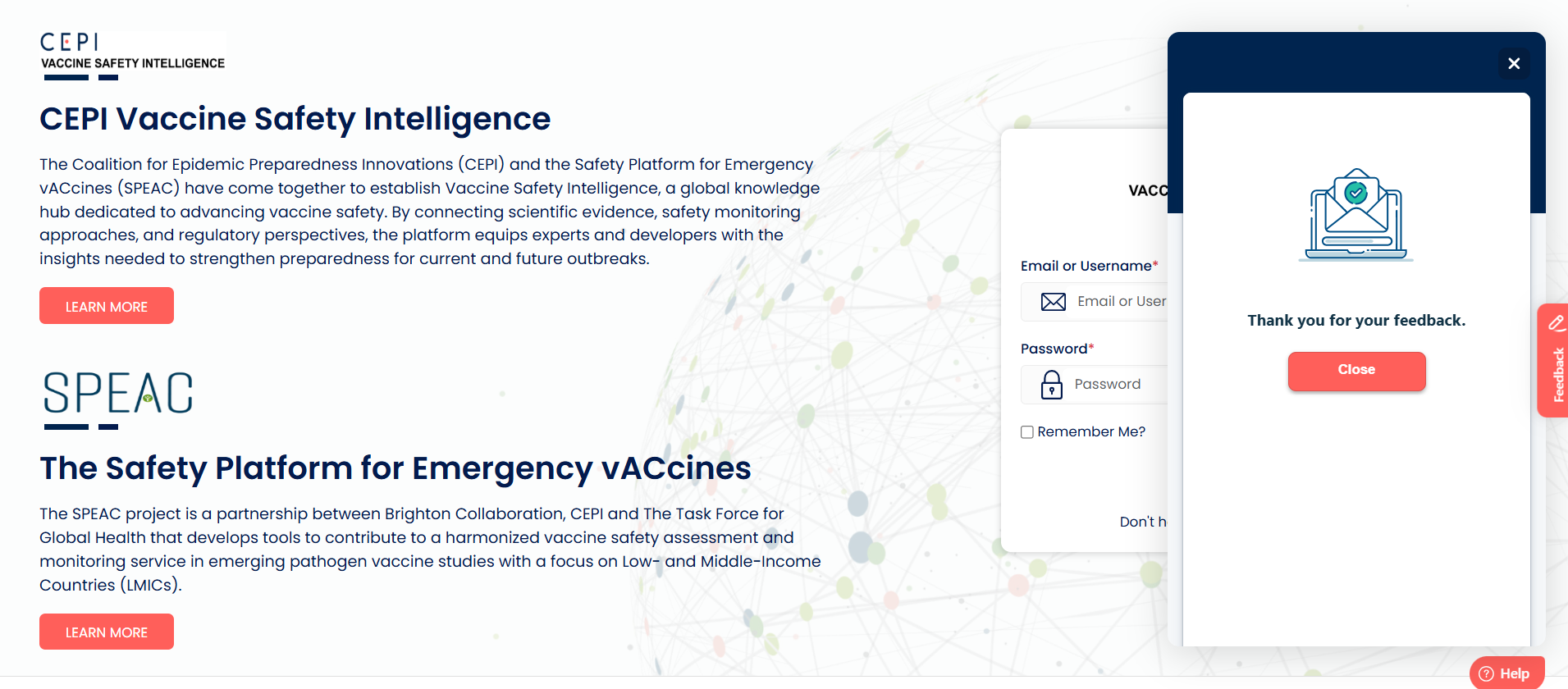
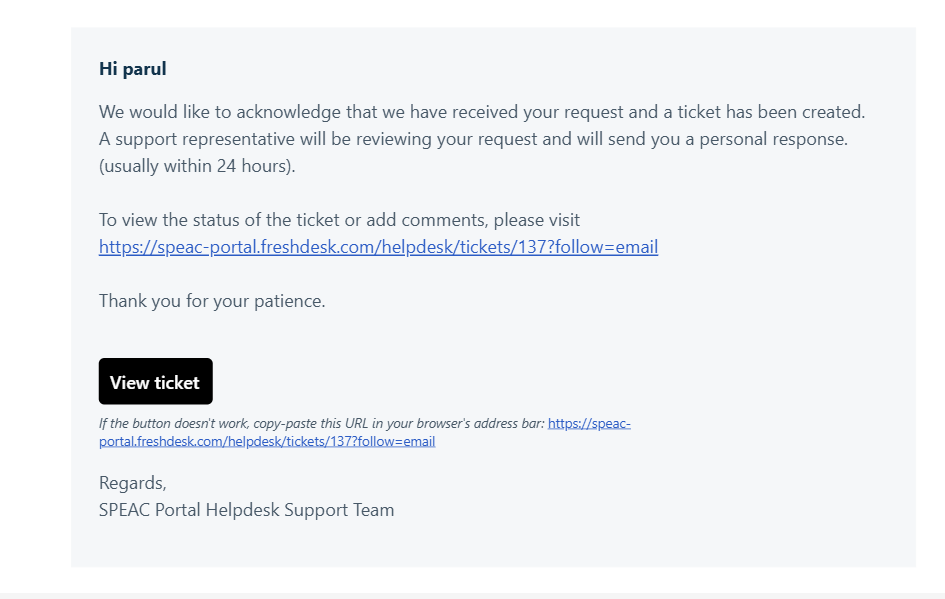
5. A ticket ID will be generated for tracking, and a confirmation email will be sent to the email address provided while creating the ticket.
4. Communication with Support team:
Customers can:
Add comments to tickets
Upload files/screenshots
Respond to support team messages via email
5. Closing a ticket:
An email notification will be sent to the user once the ticket is closed.

Was this article helpful?
That’s Great!
Thank you for your feedback
Sorry! We couldn't be helpful
Thank you for your feedback
Feedback sent
We appreciate your effort and will try to fix the article